
Region list widget#
Note
For more information about regions of interest and annotation objects, please refer to Region of interest and Region of interest or image annotation object interactions sections.
The Region List Widget provides a list of regions of interest (ROIs) and annotation objects that are registered to the active image. If the active image is not matched to the reference image, the list contains only the regions and annotations that are registered to the image itself. If the active image is matched to the reference image, the list contains all the shared regions and annotations that are registered to the reference image.
For the rest of the context, the term “region” refers to both regions of interest and annotation objects.

Cursor region#
All the images have a cursor region registered automatically when the image is loaded. If no region is active, the cursor region becomes the active region.
Active region#
When a region is selected in the Image Viewer Widget or the Region List Widget, it becomes the active region. The active region entry is highlighted in the Region List Widget. When a region is selected as active in the Image Viewer Widget, the region list will be updated to show the active region in the view when the region list is long.
When multiple regions are selected, there is still a region marked as active among the selected regions. The active region is highlighted with a different color in the Region List Widget and with white control points in the Image Viewer Widget (others are with control points in gray).
Region configuration#
To configure the properties of a region, you can double-click on the region entry in the Region List Widget. This will open the Region Configuration Dialog where you can modify the properties of the region such as name, gemetry, and styling. The Region Configuration Dialog also provides a way to delete the region or to lock/unlock the region.
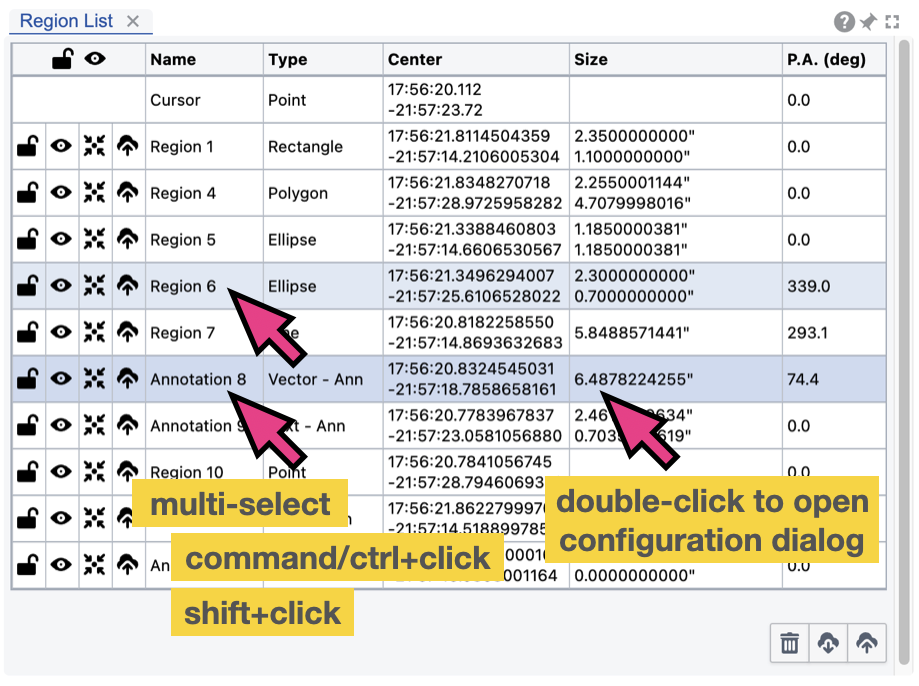
When multiple regions are selected, the Region Configuration Dialog will show the common properties of the selected regions. Modifying a common property will apply to all selected regions. For example, if you select two regions with different colors and then change the color in the Region Configuration Dialog, both regions will be updated to have the same new color.
Center a region#
For a given region you can center it in the Image Viewer Widget by clicking the “Center” button in the Region List Widget. This will update the Image Viewer Widget to show the region at the center of the view. If the region is too large to fit in the view, a new zoom level will be applied to the Image Viewer Widget to fit the region in the view.
Delete regions#
A region can be deleted by selecting the region in the Region List Widget and then use the “Delete” key. Alternatively, you can double-click on the region entry and use the “Delete” button. All regions can be deleted at once by clicking the “Delete all regions” button at the bottom-right corner of the Region List Widget.
Lock and unlock regions#
To prevent accidental modification of a region, you can lock the region by clicking the “Lock” button in the Region List Widget. When a region is locked, it cannot be modified using mouse or deleted with the delete key. However, it is still possible to modify the region properties including a deletion using the Region Configuration Dialog. To unlock a region, you can click the “Unlock” button in the Region List Widget. You may use lock/unlock all regions at once using the button at the top-left corner of the Region List Widget. This is useful when you want to prevent accidental modification of regions when you are working with a large number of regions in the image view.
Hide regions#
At the top-left corner of the Region List Widget, there is a “Hide” button to provide three states of region visibility. When it is clicked once, it will reduce the opacity of all regions so the background image is more visible. When it is clicked again, all regions will be hidden completely to provide the best view of the background image. To restore the state, click once more on the “Hide” button. This feature is useful when you want to see the background image without the distraction of regions.
Import and export regions#
For each region, you can export the region in CASA format (.crtf) or ds9 format (.reg) by clicking the export button or use “File” -> “Export Regions” menu. At the bottom-right corner of the Region List Widget, there is a “Export all regions” button as a shortcut to export all regions in the list. Similiarly, a shortcut button equivalent to “File” -> “Import regions” is also avaiable.