
Moment image generator#
Moment images (i.e., collapsed cube along the spectral axis) can be generated and viewed with CARTA. A shortcut button linked to the “Moments” tab of the Spectral Profiler Settings Dialog can be found at the top-right corner of the Spectral Profiler Widget.
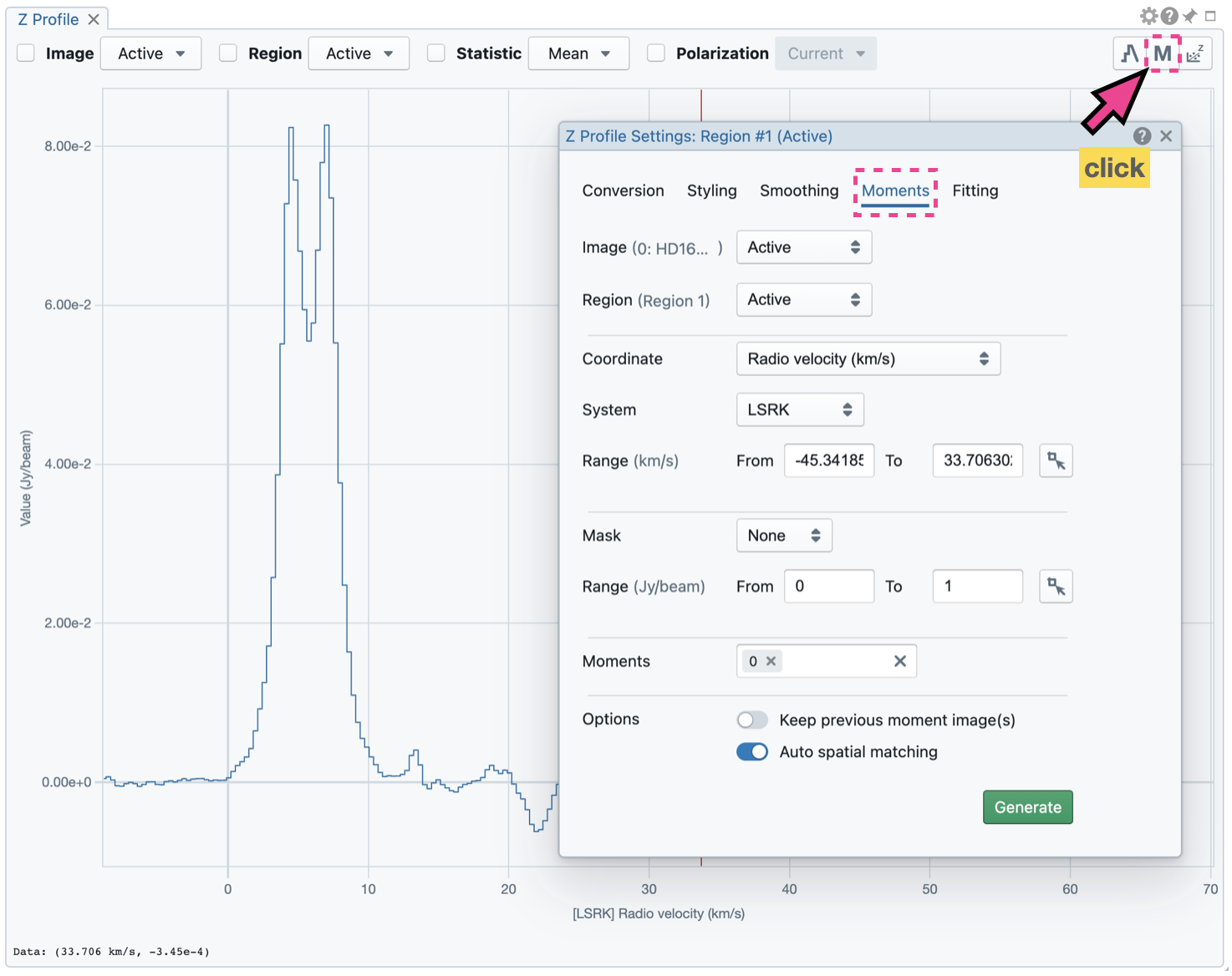
Control parameters#
The “Moments” tab provides several control parameters to define how moment images are calculated, including:
Data source: The input image file for moment calculations. “Active” refers to the image displayed in the Image Viewer.
Region: A region can be selected so that moment calculations are limited inside the region. “Active” refers to the selected region in the Image Viewer. The full image is included in the moment calculations if no region is selected.
Coordinate, System, and Range: The spectral range (e.g., velocity range) used for moment calculations is defined with these options. The range can be defined via the text input fields or the cursor by dragging horizontally in the Spectral Profiler Widget.
Rest frequency: If the coordinate is set to radio or optical velocity, the displayed rest frequency as defined in the image header is used for the velocity conversion. You can apply a new rest frequency to re-compute the velocity conversion. This is equivalent to Rest frequency for velocity conversion in the Image List Widget.
Mask and Range: These options define a pixel value range used for moment calculations. If the mask is “None”, all pixels are included. If the mask is “Include” or “Exclude”, the pixel value range defined in the text input fields is included or excluded, respectively. Alternatively, the pixel value range can be defined via the cursor by dragging vertically in the Spectral Profiler Widget.
Moments: The moment images to be calculated are defined here. Supported options are:
-1: Mean value of the spectrum
0: Integrated value of the spectrum
1: Intensity weighted coordinate
2: Intensity weighted dispersion of the coordinate
3: Median value of the spectrum
4: Median coordinate
5: Standard deviation about the mean of the spectrum
6: Root mean square of the spectrum
7: Absolute mean deviation of the spectrum
8: Maximum value of the spectrum
9: Coordinate of the maximum value of the spectrum
10: Minimum value of the spectrum
11: Coordinate of the minimum value of the spectrum
There are also options to
keep previously generated moment images in the Image Viewer
apply spatial matching to the generated moment images automatically (if the original input image is the spatial reference)
Note
Regardless of the selected coordinate for specifying a spectral range for the moment image calculations, CARTA will compute the corresponding spectral range in the channel indices. Whole channel is used for the moment image calculations. There is no sub-channel interpolation in the calculations.
Trigger moment calculations and visualize results#
When all the parameters are defined, moment calculations will begin by clicking the “Generate” button. Depending on the file size, moment calculations may take a while. If that happens, you may optionally cancel the calculations and redefine a region and a spectral range.
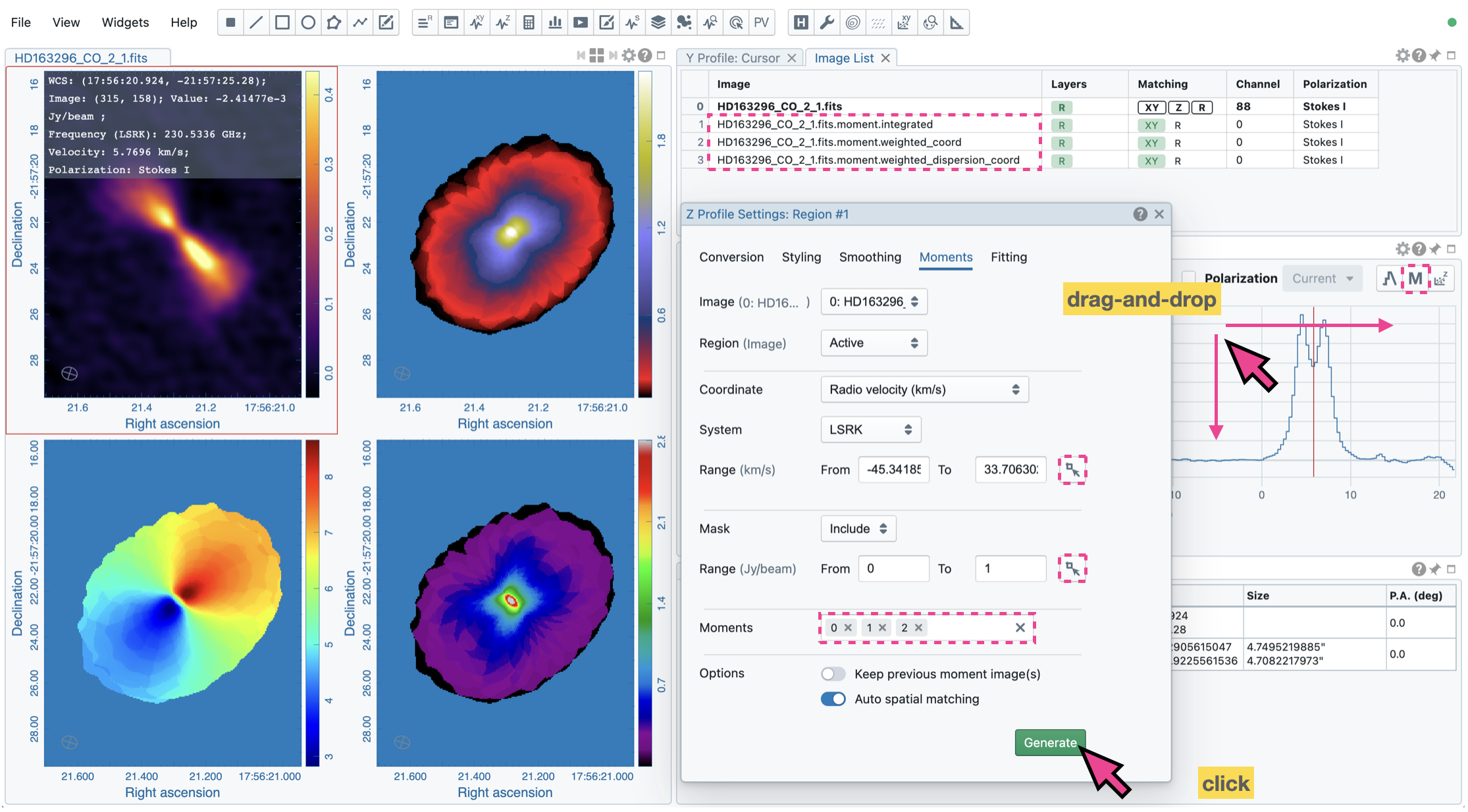
Once generated, images will be appended, displayed, and spatially matched (optional if the original input image is the spatial reference) in the Image Viewer. They are named as $image_filename.moment.$keyword. For example, if moment 0, 1, and 2 images are generated from the image M51.fits, they will be named as M51.fits.moment.integrated, M51.fits.moment.weighted_coord, and M51.fits.moment.weighted_dispersion_coord, respectively. These images are kept in RAM per session, and if there is a new request for moment calculations, these images will be deleted first. If you want to regenerate moment images but keep the previously generated moment images, you can enable the “Keep previous moment image(s)” toggle. Optionally, calculated moment images can be saved in CASA or FITS format via “File” -> “Save Image”.
Warning
In a resumed session after a broken connection to the backend, all in-memory images, such as those generated with the Moment Map Generator, are lost. Those images will not be accessible in the resumed session.
Note
As of v6.0, the moment images are computed along the spectral axis only. In future release, calculations along other axes will be provided (e.g., R.A.).