
Cursor info#
When there are multiple matched images, comparing pixel quantities from the images at the cursor position is a common practice. The Cursor Info Widget is a centralized place to show the cursor information for all the matched images in this use case. You can use the Image List Widget to trigger image matching. The Cursor Info Widget includes
image name
pixel value
spatial image and world coordinates
spectral coordinate and channel index
polarization component
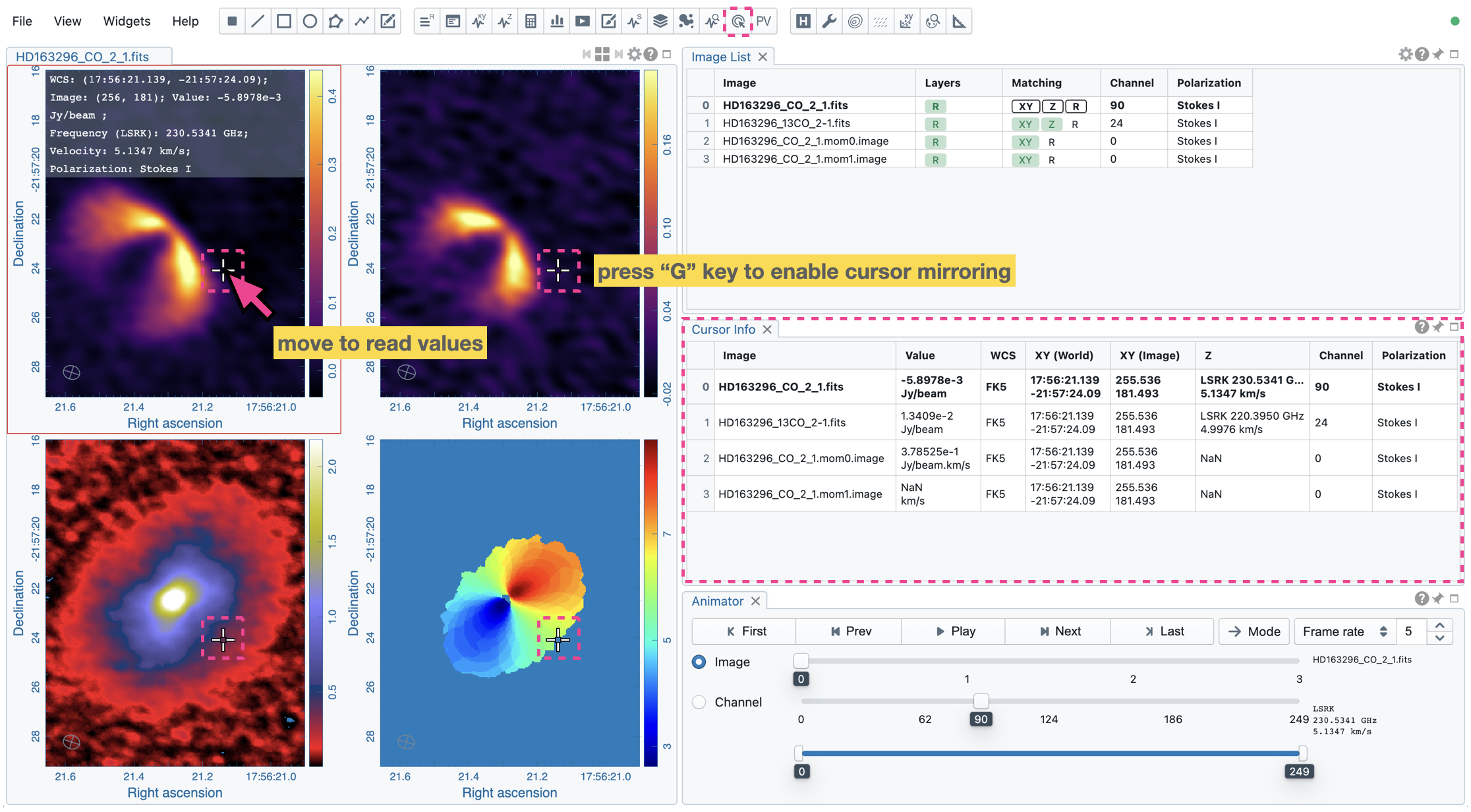
You can press the “G” key to enable mirrored cursors on the matched images.
Tip
A cursor info bar is displayed at the top of the active image plot by default in the Image Viewer. When it is the single-panel view mode, the image in the current view is the active image. When it is the multi-panel view mode, the active image is highlighted with a red box. With the “File” -> “Preferences” -> “WCS and image overlay” -> “Cursor Info Visible” dropdown menu, you can switch to a different mode. Available modes are
Always: Always show the cursor info bar per image
Active image only: Only show the cursor info bar on the active image (default)
Hide when tiled: Do not show the cursor info bar when it is in the multi-panel view mode.
Never: Do not show the cursor info bar regardless of whether it is the single-panel view mode or the multi-panel view mode.
The entry for the active image is highlighted in boldface. When you see a cursor value with a “*”, the CARTA frontend is waiting for the value update from the backend. Therefore, the displayed value may not represent the pixel value at the latest cursor position. This behavior sometimes happens with intermittent internet conditions.