
Image fitting#
The Image Fitting Dialog can be used to fit multiple 2D Gaussian components to your image. Additionally, a constant background value can be added to the fit if it is necessary.
Fitting scope#
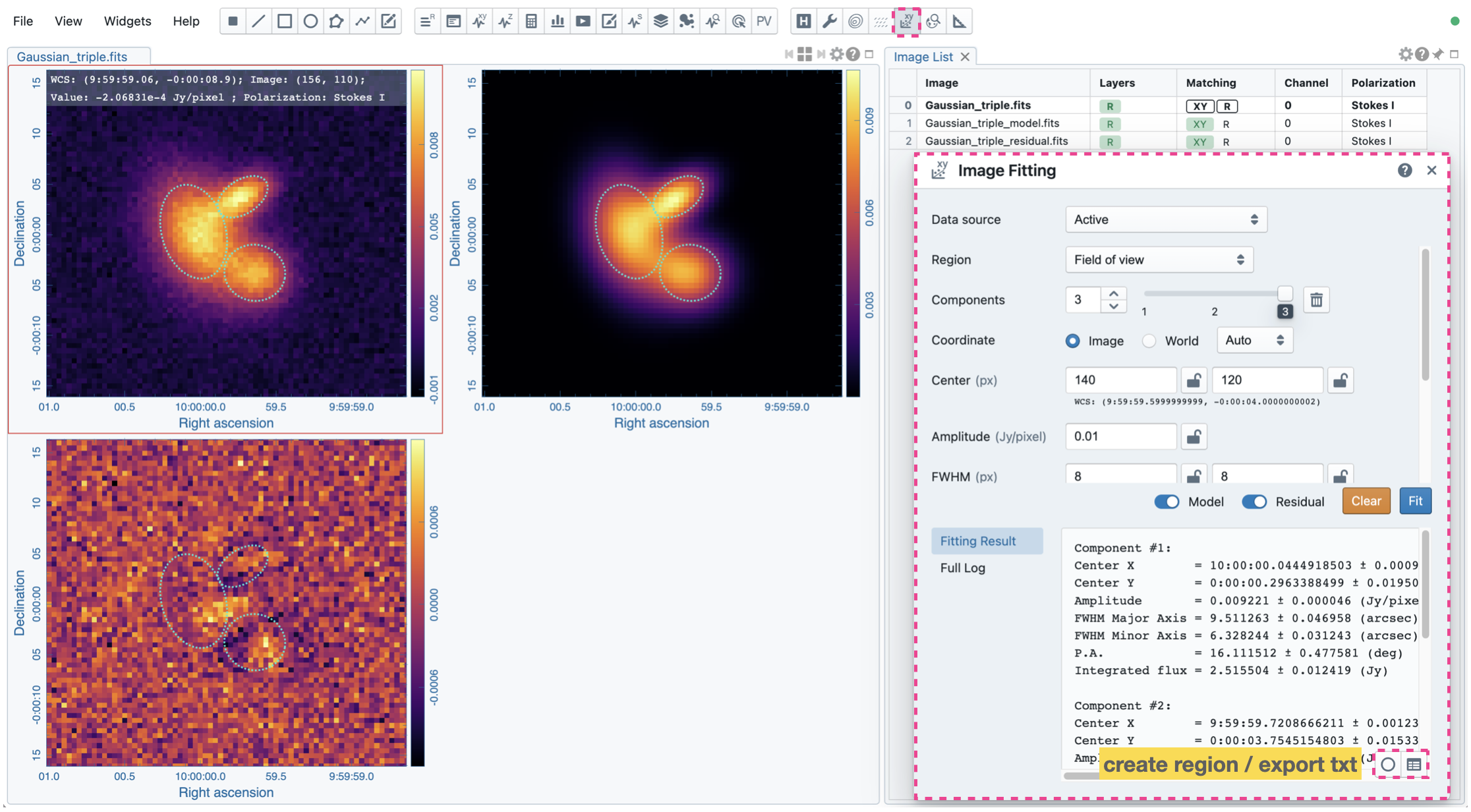
The default “Data source” is the active image, which is the current image in the Image Viewer in single-panel mode or the image highlighted with a red box if it is in multi-panel mode. You may select other images as the input image with the “Data source” dropdown menu.
By default, the image pixels used for the fitting process are coupled to the field of view of the Image Viewer. You can use zoom and pan actions to focus on the target image feature for the fit. Alternatively, you can select a region of interest or use a full image for the fitting process using the “Region” dropdown menu.
Initial guess: automatic#
Ususally when we perform image fitting, we need to provide a set of initial guesses for the fitting engine to work correctly. The “automatic” mode is designed to help you set up the initial guesses automatically based on the image feature. This mode can save you time and effort in setting up the initial guesses manually, especially when there are multiple components in the image.
With this automatic mode (default), you can simply define how many Gaussian components you want to fit using the “Components” spinbox, and the fitting engine will analyze the image feature and set up the initial guesses of each component for you. Then with a click to the “Fit” button, the fitting process will be triggered.
Initial guess: manual#
In the “manual” mode, you need to provide a set of initial guesses for the fitting engine to work properly. You can use the “Components” spinbox to define the number of Gaussian components in the fit. For each component, you need to define a set of initial guesses to describe a 2D Gaussian, including “Center”, “Amplitude”, “FWHM”, and “P.A. (deg)” (position angle). A constant “Background” value can be added to the fit as well. Free parameters may be fixed in the fitting process when it is necessary. Please note that if multiple Gaussian components exist, a more accurate initial guess helps the fitter to converge more quickly to a stable location on the hypersurface.
The major FWHM axis is aligned to the North-South direction of the sky, while the minor FWHM axis is aligned to the East-West direction of the sky. The origin (0 degrees) of the P.A. points to the North, and the P.A. increases toward the East.

Fitting solvers#
Three different solvers (“Cholesky”, “QR”, “SVD”) are provided in the “Solver” dropdown menu (see Nonlinear Least-Squares Fitting for more information).
Trigger fitting and view results#
Once the initial solutions of Gaussian components are set either automatically or manually, you can click the “Fit” button to trigger the image fitting process. The fitting result is displayed in the “Fitting Result” tab. In the “Full Log” tab, more information about the fitting results is provided, including the best-fit solution in the image coordinate. Optionally, via the “Create ellipse region” button in the bottom-right corner of the “Fitting Result” tab, you can generate a set of ellipse regions to represent the FWHM of the best-fit Gaussians. You can export the fitting result or log as a text file by using the “Export” button in the bottom-right corner of the “Fitting Result” tab. The model and residual images will be generated in RAM and appended by default once the fitting process succeeds. You can use the toggles to turn off the feature if these are not required. If you want to keep the model and residual images, use the menu “File” -> “Save Image” to save them to disk.
During the fitting process, you may cancel it if necessary. By clicking the “Clear” button, the widget is reset to its initial state.
Note
The error estimate is based on the paper by J. J. Condon (1997; PASP 109, 166).
Warning
In a resumed session after a broken connection to the backend, all in-memory images, such as the model and residual images from image fitting, are lost. Those images will not be accessible in the resumed session.