
Layout#
CARTA supports a flexible layout management system that allows users to customize the arrangement of image viewer and other widgets in the user interface. This feature is based on the FlexLayout library, which provides a powerful way to create and manage complex layouts in web applications.
Configuring a layout#
You can configure a layout by mouse actions. Please refer to Configuring the layout for details.
Layout management - save, restore, rename, and delete#
Once a custom layout is configured, you can save it for future use. CARTA allows you to save, restore, rename, and delete layouts via the Layout Dialog (”View” -> “Layout”).

To save a layout, you can input a name in the text field and click the “Save”. The saved layout, including a set of preset layouts, will be displayed right below in the list. By hovering over a layout name, you can see a set of buttons to restore, rename, or delete the layout.
Note
The layout files are kept in <your home>/.carta/config/layouts folder in the JSON format. When you install CARTA on a new computer, you may copy the layout files from the old computer to migrate the custom layouts.
Initial layout#
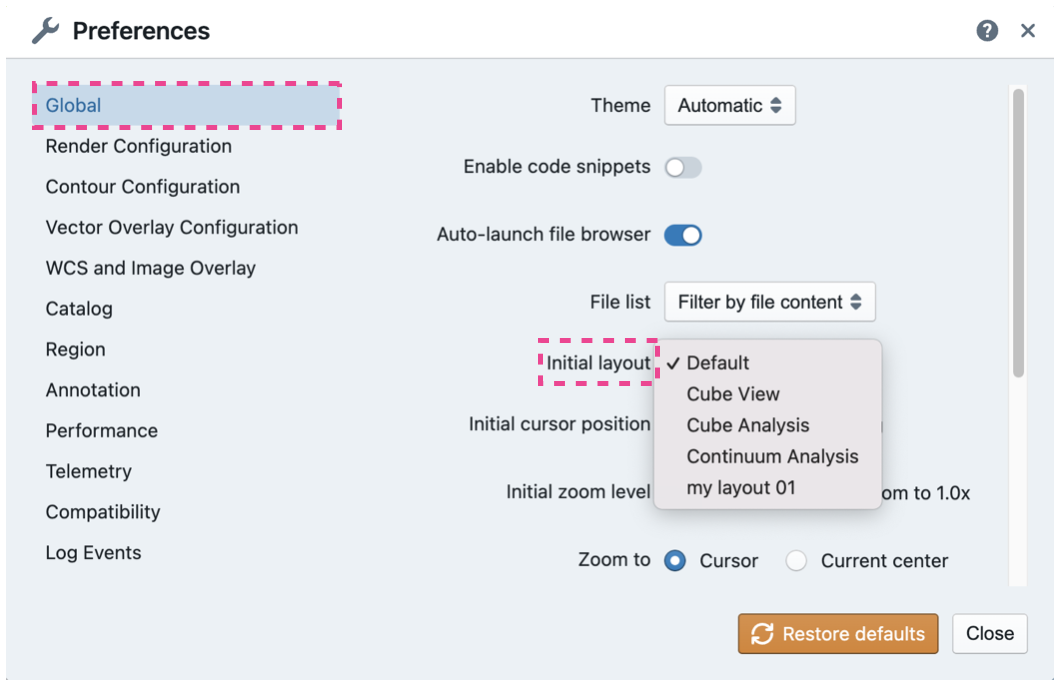
By default, CARTA will load the preset layout named “Default” when it is initialized. Which layout, including user-customized layouts, should be loaded can be further defined via the Preferences Dialog (”File” -> “Preferences” -> “Layout”). The initial layout can be set via the “Initial layout” dropdown menu.
Dynamic layout#
“Dynamic layout” is a feature that allows CARTA to automatically load the layout of widgets registered to a certain image type when the image is loaded. This could save you time to set up a layout for different use cases before doing the actual image visualization and analysis.
To enable the dynamic layout feature, you can go to the Preferences Dialog (”File” -> “Preferences” -> “Layout”) and check the “Dynamic layout” toggle. Once this feature is enabled, CARTA will automatically load the layout of widgets registered to the image type when an image is loaded. You will need to link a layout to an image type in advance to make this feature work. Image type not linked to any layout will use the default layout instead.
Note
The dynamic layout feature is triggered only when an image is loaded using the menu “File” -> “Load Image”. It does not work when there are already images loaded and you “append” new images.
If there are multiple images selected to be loaded in the File Browser Dialog, the image type for linking to a given layout will be determined jointly based on the one with highest cube dimension based on the “Higher dimension priority” toggle (default enabled) in the Preferences Dialog. If this toggle is disabled, the image type of the first image in the selected list will be used for linking to a given layout.
To link a layout to an image type, you can go to the Layout Dialog (”View” -> “Layout” -> “Dynamic Layout”) and assign a layout via the dropdown menu to a given image type. The image type is determined based on the CTYPE header keyword of the image. Standard axis types include:
XY for the spatial dimention such as RA, Dec, Galactic longitude, and Galactic latitude, etc.
Z for the spectral dimension such as frequency, velocity, wavelength, etc.
P for the Stokes dimension such as Stokes I, Q, U, V.
For an axis type that is not listed above, it will be treated as a custom axis type named as the same as the CTYPE header keyword. For example, if a 4D cube is defined as CTYPE1 = RA, CTYPE2 = DEC, CTYPE3 = Sponge, and CTYPE4 = Bob, it will be treated as a 4D cube with an image type label as (XY, XY, Sponge, Bob). Any other image files with this matched image type label will use the same layout.

When the dynamic layout feature is enabled, it is also possible to make the link directly when a new layout is saved. This can be done by enabling the “dynamic” toggle to the right of the “Save” button in the “Layout” tab of the Layout Dialog. When this toggle is enabled, the newly saved layout will be linked to the image type of the “active” image in the Image Viewer Widget. If the image type of the active image has been linked to a layout, the newly saved layout will replace the old one.
Note
The context of the “Dynamic Layout” tab in the Layout Dialog is also displayed in the Preferences Dialog (”File” -> “Preferences” -> “Layout”), allowing for easy access and modification of dynamic layout settings.
Image Viewer as a popout browser window#
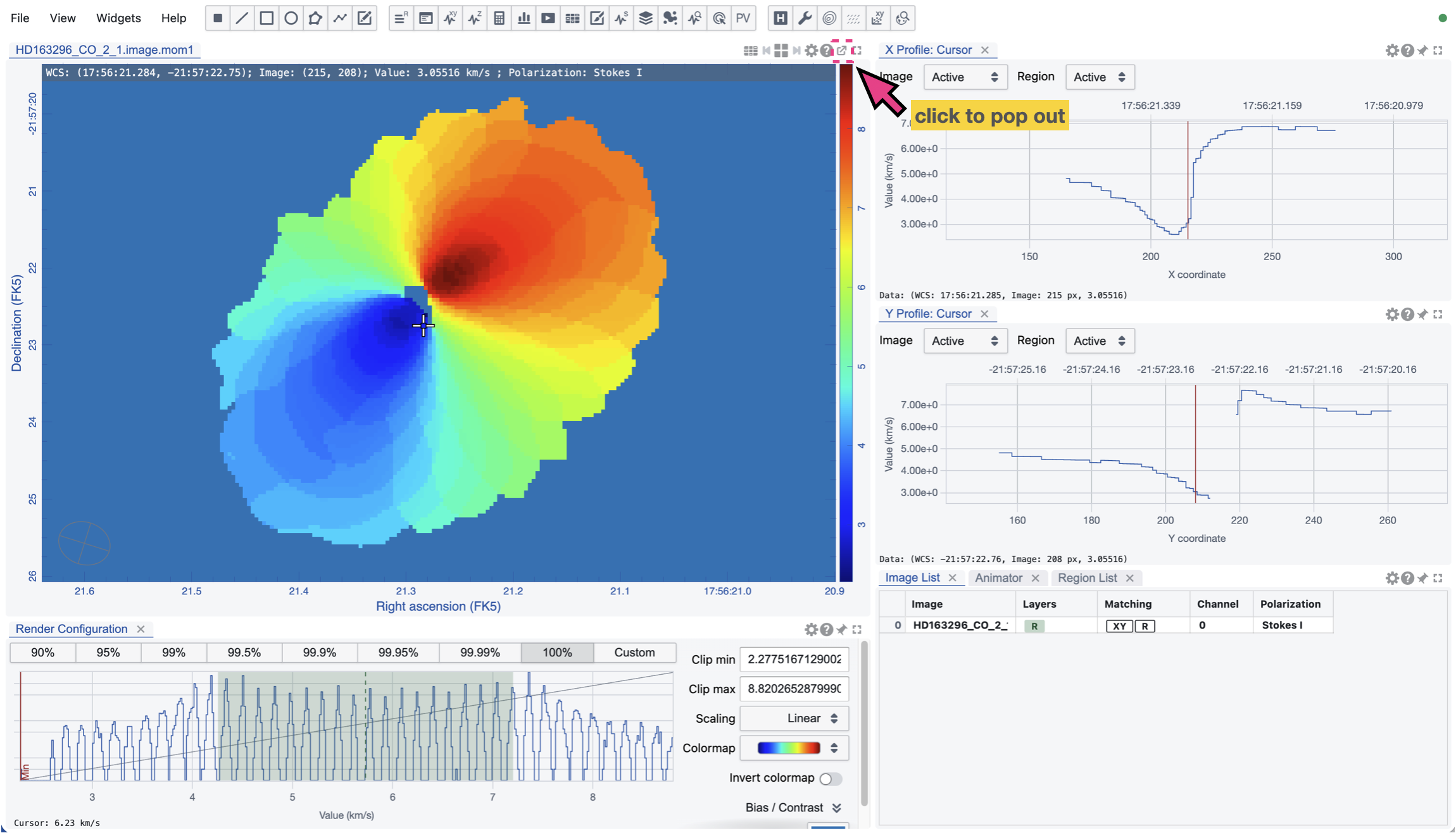
This is a new feature introduced in CARTA v6.0. The Image Viewer can be popped out as a new browser window by clicking the “popout” button at the top-right corner of the Image Viewer. The popout window can be resized and moved freely just like a regular browser window. The popout window can be closed by clicking the “close” button of the browser window and the Image Viewer will be restored to the main browser window.
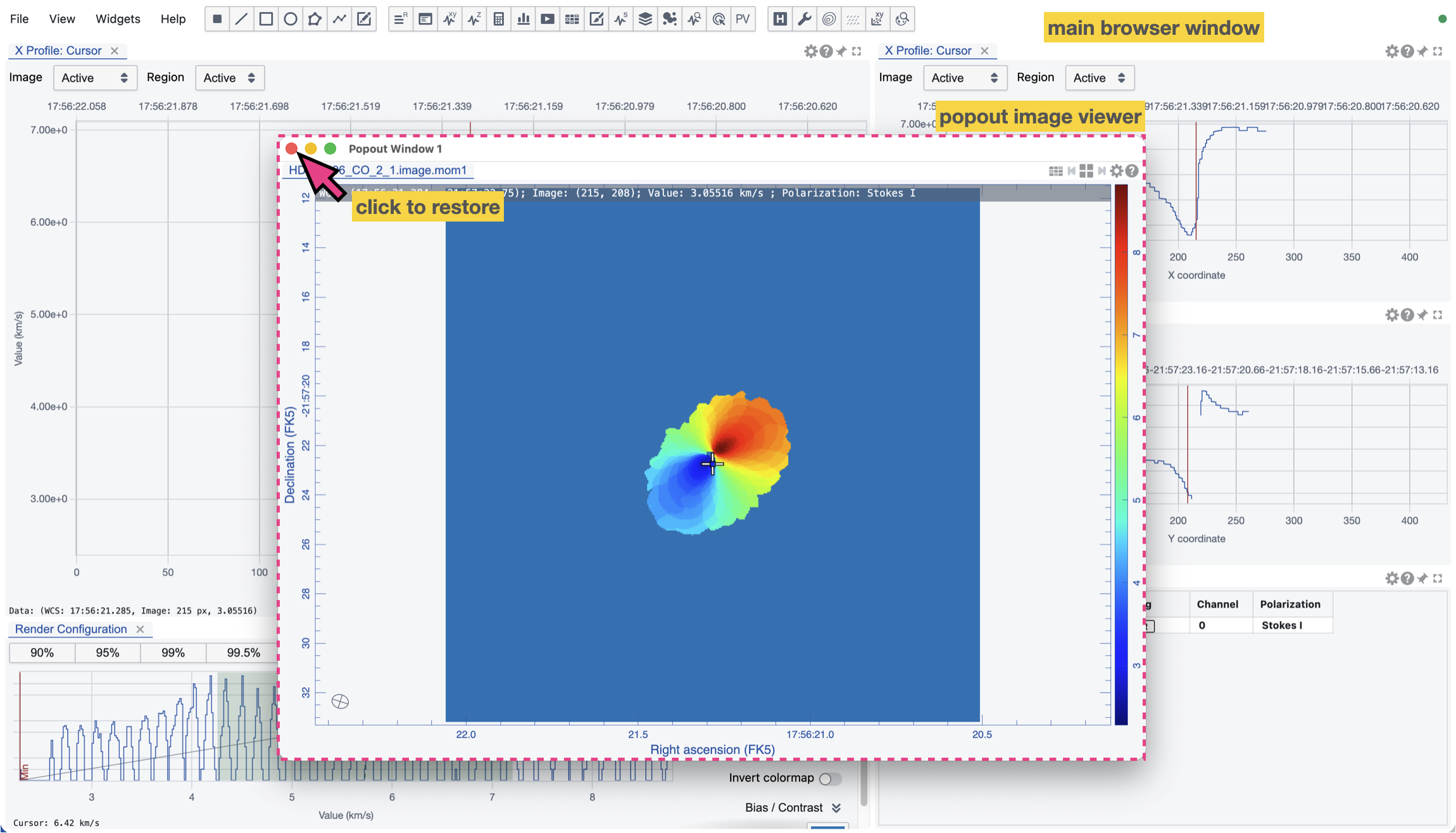
The best use case of this feature is to use a second monitor to display the Image Viewer while keeping the main browser window for other widgets, or vice verse. If you are using an extra-wide screen monitor or a regular monitor, it is still recommended to use a single browser window to display the Image Viewer and other widgets and utilize the layout management feature to configure the layout. This provides a seamless user experience when you switch focus between the Image Viewer and other widgets. When the Image Viewer is popped out as a new browser window, it is just like a regular browser window managed by the operating system. You will need to activate the browser window with an extra mouse click, with a keyboard shortcut, or enabling auto-focus on mouse hover before interacting with the content.