
Image list widget#
The Image List Widget provides a list of loaded image files in the current CARTA session and highlights the active image with boldface. In addition, for each image it provides the active channel index and the current Stokes parameter as selected in the Animator Widget. The Image List Widget also allows users to:
Switch to a different active image
Manage the order of images rendered in the Image Viewer Widget
Close images (context menu)
Manage the visibility of rendered image layers (Layers column)
Manage the matching status of images (Matching column)
Manage the matching reference images (context menu)
Manage the spectral convention for spectral matching (settings dialog)
Configure a reference rest frequency for velocity conversion (settings dialog)

Setting active image#
All the loaded images are listed in the Image List Widget. The active image is highlighted with boldface. You can switch to a different active image by clicking on the image name in the list.
Setting image order#
By default, the images are ordered by the order they are loaded. You can change the order of images by selecting a target image with a mouse click and then by dragging and dropping the target image to a desired new order in the list. If the Image Viewer Widget is in the multi-panel view mode, the images will be rendered from left to right and top to bottom in the order of the Image List Widget.

Visibility of rendered image layers#
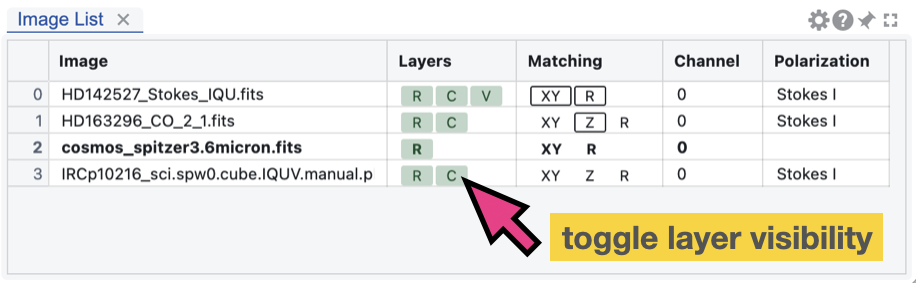
For a given image, if the contour rendering or vector field rendering is enabled, the Image List Widget will show a “C” or “V” button along with the raster rendering button “R” in the Layers column. You can click on these buttons to toggle the visibility of the corresponding rendered layers in the Image Viewer Widget. Layers are shared to all matched images. If a given layer is hidden, all matched images will not show the layer in the Image Viewer Widget.
Matching status of images#
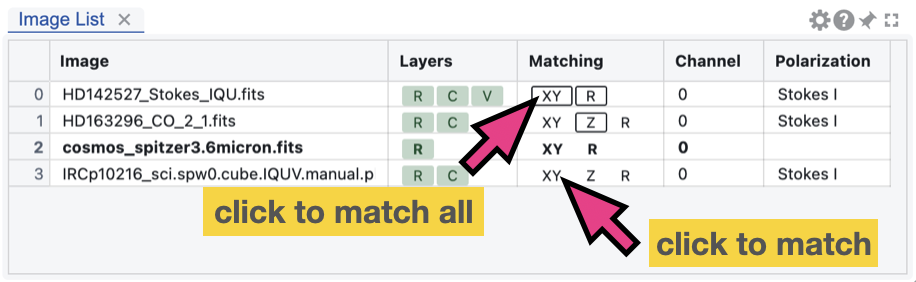
The Matching column in the Image List Widget shows the matching status of each image. “XY” stands for spatial matching, “Z” stands for spectral matching, and “R” stands for raster rendering configuration. The reference is highlighted with a black box.
For a given image, to enable or disable matching to the refernece image, you can click on the “XY” button, the “Z” button, or the “R” button in the Matching column for spatial matching, spectral matching, and raster rendering configuration matching, respectively. The matching status will be updated accordingly in the Image List Widget.
As a shortcut, you can also click on the “boxed” XY button in the Matching column to enable or disable spatial matching of all loaded images to the reference image. Similarly, you can click on the “boxed” Z button in the Matching column to enable or disable spectral matching of all loaded images to the reference image. You can also click on the “boxed” R button in the Matching column to enable or disable raster rendering configuration matching of all loaded images to the reference image.
Matching reference images#
By default, the first image with valid WCS header information will be set as the reference image for spatial matching. The first image with valid spectral information will be set as the reference image for spectral matching. The first image will be set as the reference image for raster rendering configuration matching.
The reference image can be changed by right-clicking on an image in the Image List Widget and selecting the options from the context menu. The new reference image will be highlighted with a black box in the Matching column once it is set. The matching status of the images will be updated accordingly in the Image List Widget.

Spectral type for spectral matching#
By default, spectral matching is performed using the “radio velocity” convention as the reference frame. It is also possible to use other spectral types for spectral matching via the “Settings” button in the Image List Widget and use the options in the Matching tab. The available spectral conventions include:
Radio velocity (default)
Optical velocity
Frequency
Vacuum wavelength
Air wavelength
Channel
Native (as defined in the image header)

Note
For a spectral scan project, it is recommended to use “frequency” or “wavelength” for matching adjacent spectral cubes. Once they are matched, you can use the Spectral Profiler Widget and use the multi-profile mode to visualize the full spectral coverage in frequency or wavelength at once.

Rest frequency for velocity conversion#
The spectral type “radio velocity” or “optical velocity” requires a reference rest frequency from the image header to convert the sky frequency to the velocity. The Image List Widget provides a way to set a temporarily reference rest frequency for velocity conversion without modifyig the image header permanently. You can click on the “Settings” button in the Image List Widget and use the “Rest frequency” input field in the Rest frequency tab to set a new reference rest frequency. Once a new reference rest frequency is set, the spectral matching in velocity will be updated immediately in the Image Viewer Widget and the Spectral Profiler Widget.

The Rest frequency tab in the settings dialog is also accessible via the context menu when you right-click on an image in the Image List Widget and select “Set rest frequency”.
This feature is useful when you want to compare spectral features at different rest frequencies in velocity frame without modifying the original image header. If the spectral features at different rest frequencies reside in the same cube, you will need to load the same cube multiple times and apply different rest frequencies to each loaded cube.
Close images#
The Image List Widget provides a set of shortcut options to close images. You can right-click on an image in the list to open the context menu and use the options to
Close the selected image
Close all images except the selected one
Close all images

Note
If the image is a multi-color blending image, closing it will not affect the original images used for blending. The original images will still be loaded in the Image Viewer Widget and can be used for further analysis or rendering.
Note
If the closed image servers as a reference image for matching, all other matched images will be automatically un-matched. The matching status of the images will be updated accordingly in the Image List Widget. A new reference image for matching will be set automatically based on the order of the images in the Image List Widget. The first image in the list will be set as the new reference image for matching.
Settings#
The settings dialog includes two tabs: “Matching” and “Rest frequency”. The “Matching” tab allows you to set the spectral type for spectral matching (see Spectral type for spectral matching) The “Rest frequency” tab allows you to set a new reference rest frequency for velocity conversion (see Rest frequency for velocity conversion).